Settings
Open Settings from Main window → Settings or Tray icon → right-click → Settings.
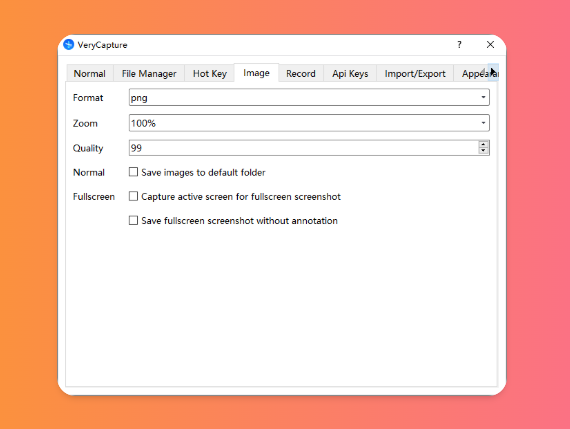
Customize VeryCapture with comprehensive options to match your workflow.
Screenshot Save Settings
| Setting | Description |
|---|---|
| Save path | Folder where screenshots are saved. Click to browse |
| Image format | PNG (lossless) / JPG (smaller file size), and others |
| Image quality | For JPG, adjust compression quality (1–100) |
| Auto save | When enabled, screenshots are saved automatically after capture |
| File name format | Timestamp or custom naming template |
File name template examples:
$yyyy-MM-dd$_screenshot→2026-06-09_screenshot.pngscreenshot_$%d$→screenshot_001.png(auto-incremented)
OCR and Translation Settings
- OCR engine: Offline / Baidu Cloud / VeryCapture Cloud
- Cloud OCR API Key: enter your key in the corresponding field
- Translation provider: choose a translation service
- Translation API Key: enter the provider secret key
- Recognition language: default mixed Chinese and English, switchable
- Translation source / target language: set translation direction
Recording Settings
| Setting | Description |
|---|---|
| GIF frame rate | 10–15 fps recommended for balance of smoothness and file size |
| GIF resolution | Original / 50% / 25% |
| Video frame rate | 30 fps recommended |
| Video resolution | Original / custom |
| Audio mode | None / microphone / system audio |
| Hide cursor | Hide the mouse cursor while recording |
Other Settings
- Language: Chinese / English / follow system
- Start with Windows: launch VeryCapture automatically at startup
- High-DPI mode: recommended for 4K or high-DPI displays