OCR Text Recognition
Recognize text in screenshots as editable text for easy copying.
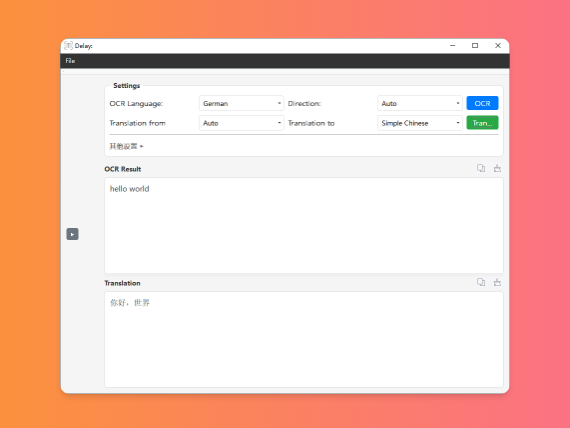
Convert text in images into editable text with advanced OCR and translation support.
How to Use
- Press the OCR hotkey
- Drag to select an area containing text
- The OCR result panel opens automatically with the recognized text
- Select text in the result panel and copy it
OCR Engine Options
VeryCapture offers offline OCR and online OCR. Configure them under Settings → Api Keys:
| Engine | Description | Internet required |
|---|---|---|
| Offline OCR | Local PP-OCRv6 model, fast, no internet needed | No |
| Online OCR | Cloud API recognition, higher accuracy, requires key or token | Yes |
Engine Selection Logic (Windows)
The app chooses the engine automatically using these rules:
- "Use offline OCR engine" is checked (requires PRO) → use offline PP-OCRv6
- Baidu OCR AppKey is not configured (empty or default) → fall back to offline PP-OCRv6
- Online OCR key is configured and offline engine is not selected → use online OCR
The offline OCR toggle is under Settings → Api Keys → Other settings.
Offline OCR: PP-OCRv6
VeryCapture offline OCR uses Baidu PaddlePaddle PP-OCRv6 (Small model by default for a balance of accuracy and speed). Activate VeryCapture PRO and enable Use offline OCR engine in Settings.
Model files: place the following files in the model/ folder under the app directory:
model/
├── PPOCRv6_mobile_det.param
├── PPOCRv6_mobile_det.bin
├── PPOCRv6_mobile_rec.param
└── PPOCRv6_mobile_rec.bin
Unified Multilingual Recognition
PP-OCRv6 Medium and Small models use one multilingual recognition model that supports 50 languages. You do not need to switch models by language, which makes mixed-language layouts easy to handle (for example, Chinese, English, and French on the same page).
The language set is straightforward: 4 core base languages + 46 Latin-script languages.
Tiny model note: Because of model size limits, the Tiny model removes Japanese support and supports the remaining 49 languages.
Core Base Languages (4)
| Language | Notes |
|---|---|
| Simplified Chinese | |
| Traditional Chinese | |
| English | |
| Japanese | Not supported by the Tiny model |
Latin-Script Languages (46)
These Latin-based languages are included in the same multilingual model, covering Western Europe, Central Europe, Northern Europe, the Americas, and parts of Africa and Southeast Asia.
Western and Mediterranean
French, German, Spanish, Italian, Portuguese, Dutch, Catalan, Galician
Northern European
Swedish, Norwegian, Danish, Finnish, Icelandic, Faroese
Central, Eastern, and Baltic European
Polish, Czech, Slovak, Hungarian, Romanian, Albanian, Estonian, Latvian, Lithuanian, Croatian, Slovenian, Maltese, Serbian (Latin script)
Americas and indigenous languages
Guarani, Quechua, Aymara, Nahuatl
African and Southeast Asian Latin-derived languages
Afrikaans, Swahili, Zulu, Hausa (Latin script), Somali, Indonesian, Malay, Tagalog (Filipino), Vietnamese (Latin script with diacritics)
Other Latin-script and regional languages
Turkish, Uzbek (Latin), Azerbaijani (Latin), Turkmen (Latin), Welsh, Irish, Scottish Gaelic, Latin
Usage Tips
- Offline OCR (PP-OCRv6): recognizes the 50 languages above by default, suitable for mixed-language content without manually choosing a language
- Online OCR: choose a language in the Recognition language dropdown on the OCR result panel for better accuracy on a specific language
Online OCR
Online OCR uses cloud APIs. Configure it under Settings → Api Keys. Two setup methods are supported:
Method 1: Your Own API Keys
Choose a provider in the OCR Provider dropdown and enter the corresponding key under OCR API Keys:
| Provider | Free | PRO | Notes |
|---|---|---|---|
| Baidu OCR (BAIDU) | ✓ | ✓ | Available by default on the free edition |
| Tencent OCR (TENCENT) | — | ✓ | Requires PRO |
| Youdao OCR (YOUDAO) | — | ✓ | Requires PRO |
| Google OCR (GOOGLE) | — | ✓ | Requires PRO |
| Auto (AUTO) | — | ✓ | Picks an available provider automatically |
After configuration, click Key Test to verify the key.
Method 2: VeryCapture Token
Enter a VeryCapture Token under Other settings, then click Bind and Test Token. After binding, the remaining OCR quota is shown in the interface. This method does not require third-party API keys; recognition is provided by the official platform.
Recognition Language (Online OCR)
When using online OCR, switch recognition mode in OCR result panel → Recognition language:
Auto-detect, Chinese, English, Japanese, Korean, French, Spanish, Portuguese, German, Italian, Russian
You can also set text orientation: horizontal (default) or auto-detect.
Related Features
The Recognize menu on the screenshot toolbar also includes these PRO features:
- Table Recognition — convert screenshot tables into editable Excel data
- QR Code Recognition — read QR codes from screenshots